Locked Out of WordPress Admin? Here’s How to Get Back In

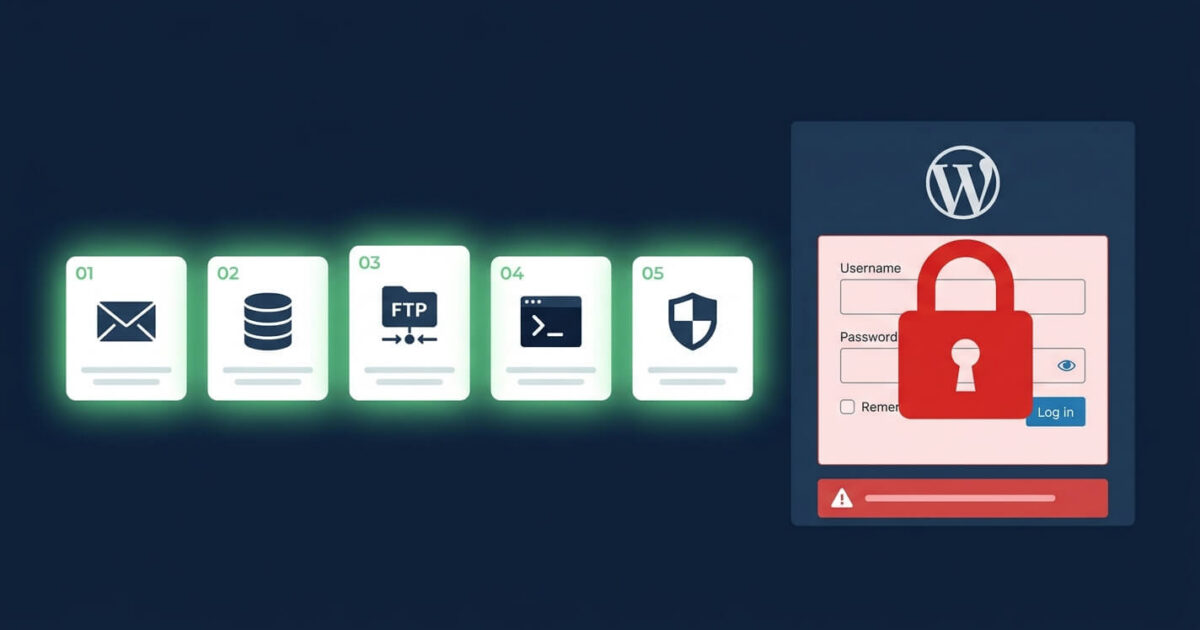
You go to log into your WordPress admin and something is wrong. Maybe you are seeing “Invalid username or password” despite typing the right credentials. Maybe the login page has disappeared entirely. Maybe you are hitting a redirect loop that sends you straight back to the homepage. Or maybe, and most worryingly, you get in and discover your access level has been downgraded to subscriber by someone else.
Lockouts happen for several reasons, and each one has a different solution. This guide walks through all five recovery methods in order from simplest to most technical, so you can get back into your site as quickly as possible.
First, Establish Why You Are Locked Out
Before attempting any recovery method, understanding the cause saves you significant time. WordPress lockouts fall into three broad categories:
- Forgotten or changed credentials — the most common cause, usually resolved quickly through email reset
- Plugin or theme conflict — a recent update broke something that now prevents access
- Hack or attack — an attacker changed your password, deleted your account, or modified your access level
The method you use depends on which of these applies. If you suspect a hack, pay particular attention to Method 5 at the end of this guide before assuming a simple password reset will solve everything.
Method 1: Use the WordPress Password Reset Email
This is the obvious first step and the right one to try before anything more technical. On the WordPress login page, click “Lost your password?” and enter either your username or the email address linked to your admin account.
If you do not receive the reset email within a few minutes, check your spam folder first. If it is not there, the most likely explanation is that your site’s outgoing mail is broken, which is a separate issue. In that case, proceed to Method 2.
If you receive the email but clicking the reset link gives you an error, your site may have a URL mismatch in the database. That points to Method 4 as the fix.
Method 2: Reset Your Password via phpMyAdmin
If the email reset does not work, you can change your password directly in the database. Log into your hosting control panel, open phpMyAdmin, and select your WordPress database.
- Open the
wp_userstable (the prefix may differ if you changed it) - Find your admin account row and click Edit
- In the
user_passfield, select MD5 from the function dropdown - Type your new password into the value field
- Click Go to save
Return to the WordPress login page and use your new password. This method bypasses the email system entirely and works even if your site cannot send mail.
Method 3: Create a New Admin User via FTP
If you cannot access phpMyAdmin or your current admin account has been deleted entirely, you can create a fresh admin account by adding code to your theme’s functions.php file. Connect to your server via FTP, navigate to your active theme folder, and add this code at the very end of functions.php:
add_action( 'init', function() { $user = get_user_by( 'email', 'youremail@example.com' ); if ( ! $user ) { wp_create_user( 'newadmin', 'StrongPassword123!', 'youremail@example.com' ); $user = get_user_by( 'email', 'youremail@example.com' ); } $user->set_role( 'administrator' ); } );Replace the email, username and password with your own values. Save the file, visit any page on your site to trigger the code, then log in with your new credentials. Critically, remove this code from functions.php immediately after logging in. Leaving it in place creates a permanent security vulnerability.
Method 4: Fix a Plugin or Theme Conflict Causing the Lockout
If a recent plugin or theme update broke your admin access, you can disable all plugins at once via FTP without needing to log in. Connect via FTP and navigate to wp-content/plugins/. Rename the entire plugins folder to something like plugins-disabled. WordPress will deactivate all plugins instantly.
Try logging in again. If access is restored, the lockout was caused by a plugin conflict. Rename the folder back to plugins, then reactivate plugins one by one to identify the culprit. Once you find it, leave it deactivated until the developer issues a fix.
To disable only your active theme, rename the theme folder inside wp-content/themes/ and WordPress will fall back to its default theme automatically.
Method 5: What to Do If a Hack Caused the Lockout
This is the scenario that requires the most careful handling. If you regain access through any of the methods above and discover that you did not cause the lockout yourself, treat it as a confirmed compromise immediately.
Signs that a hack caused your lockout rather than a forgotten password or plugin conflict:
- Your email address on the admin account has been changed to an unknown address
- New administrator accounts appear in Users that you did not create
- Your account still exists but has been downgraded from Administrator to a lower role
- The password was changed on a date you did not change it
- You can log in but your site content looks different, or visitors report being redirected
In any of these cases, simply resetting your password is not enough. Attackers who lock site owners out of their own admin panels do so as a step in a broader compromise. They have typically already installed backdoors, created rogue admin accounts, and injected malware across your files and database before you noticed the lockout.
Regaining access and changing your password removes one small part of the problem while leaving the rest entirely intact. Without a thorough cleanup, you will be locked out again, or your site will continue causing harm to visitors even though you now have access to it.
After Regaining Access: Immediate Security Steps
Regardless of what caused your lockout, take these steps as soon as you are back in:
- Go to Users and delete every account you do not recognise
- Change your password immediately to a strong, unique one you have never used before
- Change your hosting, FTP, and database passwords as well
- Enable two-factor authentication on your admin account
- Run a full Wordfence scan and review the results carefully
- Check your active plugins list for anything you did not install
If the scan finds malware, or if you found signs of a hack, do not stop at the password changes. Read our complete malware removal guide for the full cleanup process, or review our 10 warning signs your site has been hacked to confirm the extent of what you are dealing with.
When to Get Professional Help
Some lockout situations are beyond DIY recovery. Contact a professional if:
- Your database has been deleted or corrupted and you have no recent backup
- All admin accounts including your own have been deleted
- The methods above are not working and you cannot identify why
- You have confirmed a hack and are not comfortable performing a full malware cleanup yourself
- Your hosting provider has suspended your account as part of the same incident
Our emergency WordPress help service covers lockouts caused by attacks as part of every standard cleanup. We respond within 2 hours, restore admin access, remove all malware, close every backdoor, and harden your site against re-entry. The entire process runs at a fixed, transparent price with a no-fix no-fee guarantee. You can also run a free scan first if you are not yet sure whether a hack is involved.
We Fix Hacked WordPress Sites
Fixed £495. No-fix no-fee. Response in under 2 hours — worldwide.
Get Emergency Help NowRelated Articles

WordPress Site Hacked? Do This in the Next 30 Minutes
You’ve just found out your WordPress site has been hacked. Your heart is racing. You don’t know what…
10 Warning Signs Your WordPress Site Has Been Hacked (Most Owners Miss #6)
Here’s the uncomfortable truth: the average WordPress site is infected for 197 days before the owner realises it.…