WordPress Security Hardening: 15 Steps That Actually Make a Difference


There’s no shortage of WordPress security guides online. Most of them are padded out with vague advice like “keep WordPress updated” and “use strong passwords.” You know that already.
This guide is different. These are the 15 specific steps we implement on every single site we clean the ones that genuinely close the vulnerabilities attackers actually exploit.
1. Enable Two-Factor Authentication on All Admin Accounts
Brute-force attacks and credential stuffing (trying passwords leaked from other sites) account for a significant percentage of WordPress hacks. Two-factor authentication (2FA) stops these cold even if an attacker gets your password, they still can’t log in.
Use a plugin like WP 2FA or Google Authenticator for WordPress. Enforce it for all administrator accounts not just your own.
2. Change Your Default Admin Username
If your admin username is “admin” change it right now. Automated brute-force tools try “admin” as their very first guess, every single time. A random username eliminates this entire attack vector.
You can’t change a WordPress username directly. Create a new user with administrator rights, log out, log in as the new user, then delete the “admin” account.
3. Limit Login Attempts
WordPress, by default, lets someone try to log in unlimited times. This makes it trivially easy to brute-force a password. Install a login limiting plugin (Limit Login Attempts Reloaded is free and solid) to lock out IPs after a set number of failed attempts.
4. Disable XML-RPC Unless You Need It
XML-RPC is an older WordPress API that allows remote connections to your site. If you’re not using it (and most sites don’t need it), it’s a significant attack surface. It can be used to bypass login attempt limits, launch DDoS attacks, and execute commands remotely.
Disable it by adding this to your .htaccess:
<Files xmlrpc.php>
    Order Deny,Allow
    Deny from all
</Files>
5. Block PHP Execution in the Uploads Folder
One of the most effective single hardening steps. Legitimate files in your uploads folder (images, PDFs, documents) don’t need to execute PHP. But attackers frequently use the uploads folder to hide backdoor PHP files because many security tools don’t scan it as thoroughly.
Create a file called .htaccess inside your wp-content/uploads/ folder with this content:
<Files *.php>
    deny from all
</Files>
This prevents any PHP file in uploads from being executed — even if one is somehow placed there.
6. Keep WordPress, Plugins and Themes Updated
Yes, you know this already. But it’s worth understanding why it’s the single most important thing you can do: most WordPress hacks exploit known vulnerabilities in outdated software. When a security patch is released, it also publicises the vulnerability meaning attackers immediately start targeting every site still running the old version.
The window between a security patch being released and exploitation attempts beginning is often less than 24 hours.
7. Delete Inactive Plugins and Themes
Inactive plugins and themes are still executable code sitting on your server. They still have vulnerabilities. They’re just deactivated which means WordPress won’t apply updates to them, and you’re probably not monitoring them.
Delete every plugin and theme you’re not actively using. This includes the default Twenty-Twenty-X themes if you’re using a custom one.
8. Move wp-config.php Up One Level
The wp-config.php file contains your database credentials. WordPress will still find it if you move it one directory level above your WordPress installation (your hosting root). This means it’s outside the web-accessible directory and can’t be downloaded directly via a browser.
9. Protect Your wp-config.php File
Whether or not you move it, add this to your main .htaccess:
<Files wp-config.php>
    Order Allow,Deny
    Deny from All
</Files>
10. Use Security Keys and Salts
WordPress uses security keys and salts to encrypt authentication cookies. If you’ve had a breach (or if you suspect one), refreshing your security keys invalidates all existing sessions, logging everyone out.
Go to the WordPress secret key generator (api.wordpress.org/secret-key/1.1/salt/), copy the new keys, and paste them into wp-config.php, replacing the existing ones.
11. Implement a Web Application Firewall (WAF)
A WAF sits in front of your site and filters out malicious requests before they reach WordPress. Wordfence (free) provides a decent WAF at the plugin level. Cloudflare’s free plan provides network-level protection. Sucuri and Wordfence Premium provide more comprehensive coverage.
12. Set Correct File Permissions
WordPress file permissions should be:
- Directories: 755
- Files: 644
wp-config.php: 440 or 400
Overly permissive permissions (777 on files or directories) are dangerous. Check and correct these via FTP or your hosting file manager.
13. Disable Directory Listing
By default, if someone accesses a directory on your server that doesn’t have an index file, they’ll see a list of all files in that directory. Add this to your .htaccess to prevent this:
Options -Indexes14. Use HTTPS and Set HSTS
If you’re still running on HTTP — move to HTTPS immediately. Most hosting providers offer free SSL through Let’s Encrypt. Once on HTTPS, add the HSTS header to tell browsers to always use the secure version and never fall back to HTTP.
15. Set Up Automated Backups to an Off-Site Location
Not strictly a security measure, but the single most important recovery tool. Backups stored on the same server as your site can be compromised in the same hack. Store backups to an external location: Amazon S3, Google Drive, or a dedicated backup service.
Test your backups occasionally. A backup you’ve never tested is a backup you don’t know works.
After a Hack: Do All 15
If you’ve just recovered from a hack, these aren’t optional extras — they’re required. Every single one of them closes a real attack vector that attackers routinely exploit.
If you’d like us to implement all of this for you as part of a post-hack cleanup, our service includes full hardening on every cleanup we do it’s built into the price, not an add-on.
We Fix Hacked WordPress Sites
Fixed £495. No-fix no-fee. Response in under 2 hours — worldwide.
Get Emergency Help NowRelated Articles
WordPress Brute Force Attacks: How They Work and How to Stop Them
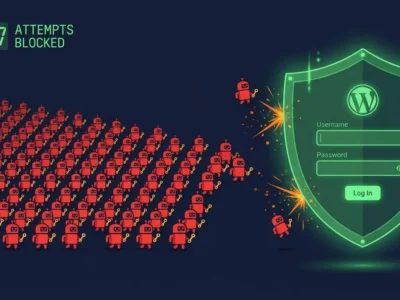
Wordfence blocks over 6.4 billion brute force attacks against WordPress sites every single month. That figure sounds extraordinary…

How to Install WordPress Correctly and Securely (2026 Step-by-Step Guide)
Most guides on how to install WordPress stop at the point where the site is live. That is…