How to Install WordPress Correctly and Securely (2026 Step-by-Step Guide)

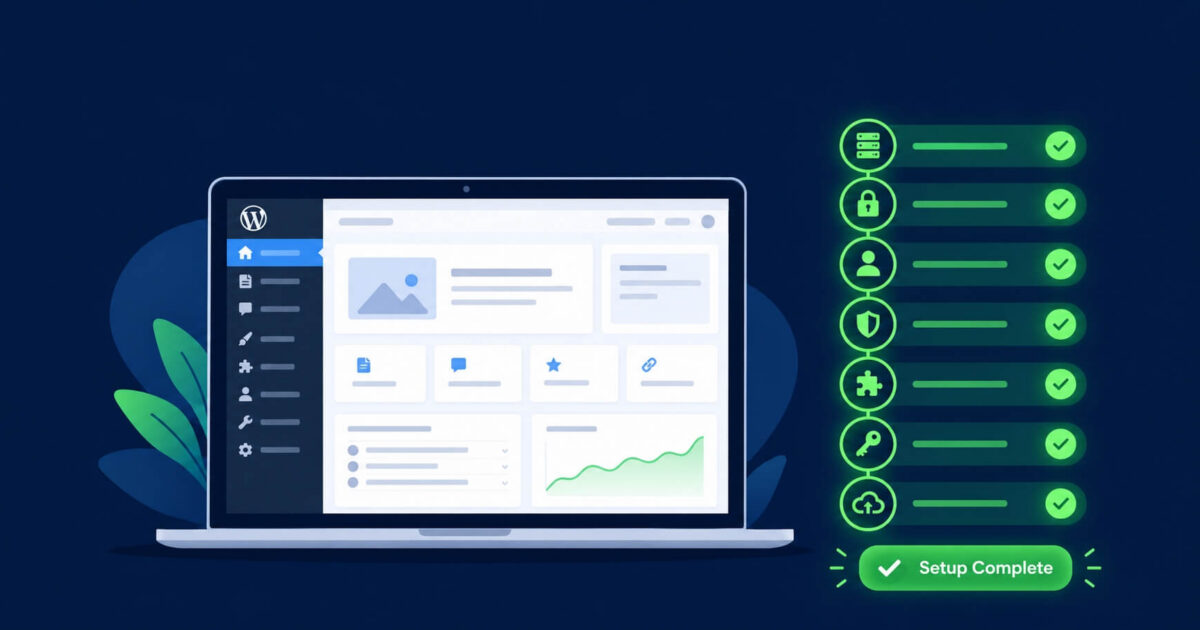
Most guides on how to install WordPress stop at the point where the site is live. That is the beginning of the problem. A default WordPress installation is functional but deliberately open, designed to be accessible rather than hardened. Every site owner who leaves the default settings in place is handing automated attack tools exactly what they look for.
This guide covers the full installation process, including the security steps that most tutorials skip entirely.
What Do You Need Before You Install WordPress?
Before installing WordPress you need three things: a domain name, a hosting account, and a basic understanding of which hosting type suits your needs. In particular, getting the hosting decision right matters for security as much as it matters for performance, since your hosting environment determines which server-level protections run before any request ever reaches WordPress.
Which Type of Hosting Should You Use?
Shared hosting is the most affordable option and works well for new or low-traffic sites, provided the provider isolates accounts properly and includes server-level firewall protection and daily backups. Avoid very cheap shared hosts that pack hundreds of sites onto a single server with no account isolation, since a compromised neighbouring site can affect yours.
Managed WordPress hosting (Kinsta, Flywheel, WP Engine, Cloudways) handles security updates, server configuration, and performance optimisation for you. It costs more but removes significant maintenance overhead and often includes malware scanning and automatic backups as standard.
VPS or dedicated hosting gives you full server control, which is appropriate if you have the technical knowledge to configure it securely. An unmanaged VPS set up incorrectly can be more vulnerable than shared hosting, not less.
Where Should You Download WordPress?
Always download WordPress from wordpress.org, the official source. Never download WordPress from third-party sites, torrents, or “free download” pages. Unofficial copies of WordPress are a common distribution method for pre-packaged malware. The official download at wordpress.org is always free and always includes the latest version.
How to Install WordPress: Step by Step
Step 1: Create Your Database
Log into your hosting control panel (cPanel or equivalent) and create a new MySQL database. Most guides tell you to do this and move on. Do three additional things here that make a meaningful security difference:
- Give the database a non-obvious name rather than something like “wordpress” or your domain name
- Create a dedicated database user for WordPress rather than using the root database user
- Use a strong, randomly generated password for the database user and save it in a password manager
Step 2: Upload and Extract WordPress
Download WordPress from wordpress.org, unzip the file, and upload the contents to your hosting account via FTP or your hosting file manager. Place the files in the public root directory (usually public_html) if you want WordPress to run at your main domain, or in a subdirectory if you want it at yoursite.com/blog.
Step 3: Run the WordPress Setup Wizard
Visit your domain in a browser. WordPress detects the installation files and starts the setup wizard automatically. You will need the database name, database username, database password, and database host (usually “localhost”) from Step 1.
During this step, change the database table prefix from the default “wp_” to something unique such as “s7k_” or “wp83_”. Automated SQL injection tools specifically target the default “wp_” prefix. Changing it during setup takes ten seconds and removes an entire category of attack.
Step 4: Create Your Admin Account Correctly
The setup wizard asks you to create an admin username and password. Two critical steps here that most tutorials do not emphasise:
Do not use “admin” as your username. Brute force tools try “admin” as their first guess on every WordPress site they target. Use your name, a random word, or any other unique identifier instead.
Use a password manager to generate your password. WordPress will suggest a strong password, but a 20-character randomly generated password from a password manager is significantly stronger than anything you will type yourself. Use it and save it.
What Security Steps Should You Take Immediately After Installing WordPress?
The install process gets WordPress running. These steps, done immediately after, make it secure. As a result, do not publish any content or install any plugins before completing this list.
1. Install an SSL Certificate
HTTPS is not optional. An unencrypted site exposes login credentials to interception, and Google marks non-HTTPS sites as unsafe in Chrome. Most hosting providers now include free SSL certificates through Let’s Encrypt. Activate yours from your hosting dashboard, then update your WordPress address and site address in Settings to use https.
2. Delete the Default Admin User If It Exists
If you find a user called “admin” in your Users list, create a new administrator account with a unique username, log in as that account, and then delete the original “admin” user. Assign all its content to your new account when prompted.
3. Set Correct File Permissions
WordPress files and folders need specific permission settings. Too permissive means attackers can write malicious files. Too restrictive breaks normal WordPress function. The correct settings are: directories at 755, files at 644, and wp-config.php at 440 or 400. Set these via your hosting file manager or FTP client.
4. Harden wp-config.php
Add these two lines to your wp-config.php file to prevent file editing from the WordPress dashboard and disable PHP error reporting in production:
define( 'DISALLOW_FILE_EDIT', true ); define( 'WP_DEBUG', false );The first line stops anyone who gains admin access from editing your theme and plugin files directly through the browser. The second line prevents error messages from displaying sensitive path information to visitors.
5. Enable Two-Factor Authentication
Install a two-factor authentication plugin such as WP 2FA and enable it for all administrator accounts. Two-factor authentication stops brute force attacks and credential stuffing attacks entirely, since an attacker who correctly guesses your password still cannot log in without the second factor from your authenticator app.
6. Limit Login Attempts
WordPress allows unlimited login attempts by default. Install Limit Login Attempts Reloaded and set it to lock out an IP address after three to five failed attempts. This makes automated brute force attacks impractically slow.
7. Block PHP Execution in the Uploads Folder
Create a file called .htaccess inside your wp-content/uploads/ folder and add these contents:
<Files *.php> deny from all </Files>Legitimate uploaded files (images, PDFs, documents) do not need PHP execution. This single step prevents a whole category of backdoor attacks that use the uploads folder to hide malicious PHP files.
8. Install a Security Plugin and Run a Scan
Install Wordfence (free) and run your first full scan immediately after setup. Even a brand new installation can have issues depending on where the install files were sourced. Running a baseline scan also gives you a clean reference point for future scans.
9. Set Up Automated Backups to an Off-Site Location
Configure daily automated backups to an external destination: Amazon S3, Google Drive, or a dedicated backup service. Backups stored on the same server as your site can be compromised or deleted in the same attack. An off-site backup is your last line of defence if everything else fails.
What Plugins Should You Install First on a New WordPress Site?
Install as few plugins as possible, particularly in the beginning. After all, every plugin is additional code on your server and an additional potential vulnerability. For a new site, a minimal essential set includes a security plugin, a backup plugin, an SEO plugin, and a caching plugin for performance. Install others only when you have a specific, immediate need for them.
Before installing any plugin, check three things on its WordPress.org listing: the last update date (anything over 12 months is a risk), compatibility with your current WordPress version, and the number of active installations. Consequently, a plugin abandoned by its developer will never receive security patches.
What Should You Do If Your Newly Installed WordPress Site Gets Hacked?
New sites get hacked less often than established ones, but it does happen, particularly when hosting accounts are shared with other compromised sites. If your new site shows signs of compromise, check our guide to the warning signs of a hacked WordPress site and our malware removal guide. If you need professional help, our emergency service handles newly infected sites the same day at a fixed, transparent price with a no-fix no-fee guarantee. You can also run a free scan first to confirm what you are dealing with.
Frequently Asked Questions
How long does it take to install WordPress?
The basic WordPress installation takes around five minutes using a one-click installer from most hosting providers. A correct and secure installation, including SSL setup, file permissions, two-factor authentication, login limits, and backup configuration, takes closer to twenty to thirty minutes.
Is it free to install WordPress?
Yes. WordPress itself is free to download and use. You pay for hosting and a domain name, but the WordPress software has no licence fee. Always download from wordpress.org to ensure you get the legitimate, unmodified version.
What is the most secure way to install WordPress?
The most secure WordPress installation uses a unique admin username, a strong randomly generated password, a custom database table prefix, correct file permissions (755 for directories, 644 for files, 440 for wp-config.php), two-factor authentication, a login attempt limiter, PHP execution blocked in the uploads folder, and automated off-site backups.
Do I need a security plugin on a new WordPress site?
Yes, from day one. A security plugin like Wordfence provides a baseline scan, firewall protection, and login security features that new sites need immediately. Waiting until after a compromise is not a strategy.
What is the default WordPress admin username?
WordPress does not force a default username, but many people choose “admin” during setup. This is the first username automated brute force tools try. Always choose a unique username during installation and never use “admin”, “administrator”, or your domain name.
Can I install WordPress on my own computer?
Yes. You can install WordPress locally using XAMPP, WAMP, or Local by Flywheel. A local installation is useful for development and testing but is not accessible to the public. You need web hosting to make a WordPress site visible on the internet.
We Fix Hacked WordPress Sites
Fixed £495. No-fix no-fee. Response in under 2 hours — worldwide.
Get Emergency Help NowRelated Articles
WordPress Security Hardening: 15 Steps That Actually Make a Difference
There’s no shortage of WordPress security guides online. Most of them are padded out with vague advice like…
WordPress Brute Force Attacks: How They Work and How to Stop Them
Wordfence blocks over 6.4 billion brute force attacks against WordPress sites every single month. That figure sounds extraordinary…