Google Blacklisted My WordPress Site — How to Get Removed (Step-by-Step)

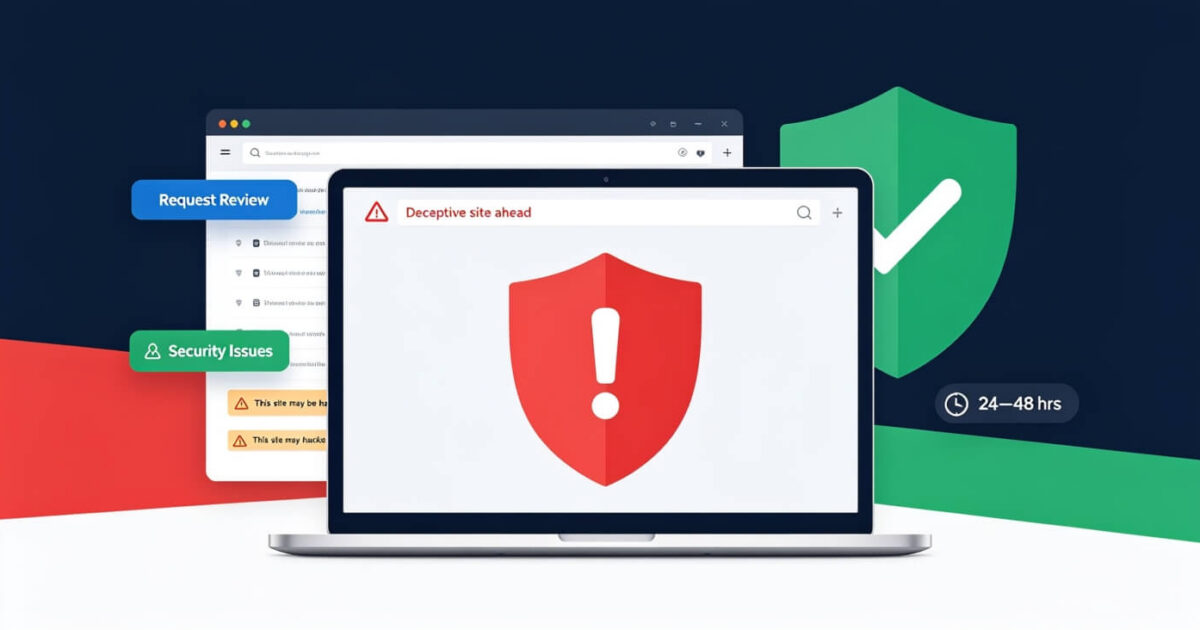
You open Chrome to check your own website and your stomach drops. A large red warning page: “Deceptive site ahead.” Or: “This site may harm your computer.” Visitors are seeing this. Every person who tries to visit your site right now gets that warning instead of your homepage.
Your traffic has gone to zero.
This is Google’s Safe Browsing blacklist in action. Here’s everything you need to know about how it works and more importantly how to get off it.
What Is the Google Blacklist?
Google Safe Browsing is a service that checks websites for malware, phishing content and deceptive material. When Google detects one of these on your site, it adds you to a list that all major browsers — Chrome, Firefox, Safari — check before allowing a visit.
The result is that warning page that stops virtually everyone from visiting your site.
Being on the blacklist doesn’t just destroy your traffic today. Google’s algorithm also deprioritises blacklisted sites in search results, meaning your organic rankings take a hit even for users who don’t see the warning directly.
The Four Types of Google Blacklist Warning
“Deceptive site ahead” — Your site contains phishing content or fake login pages designed to steal user credentials.
“This site may harm your computer” — Your site is distributing malware to visitors.
“Suspicious site” — Something on your site looks suspicious but Google isn’t certain enough to show a full warning.
“This site has been reported as unsafe” — Users have reported your site as unsafe (less common for WordPress hacks, more common for deliberate spam).
Step 1: Find Out What Google Found
Before you start cleaning, understand exactly what triggered the warning. Go to:
Google’s Safe Browsing Transparency Report
Enter your domain. This tells you:
- When the site was last detected as unsafe
- What type of content was found (malware, phishing, etc.)
- Whether Google has reviewed it recently
Also check Google Search Console → Security Issues. This gives you more detail about what specifically Google found on your site.
Step 2: Clean Your Site Completely
There’s no shortcut here — you need to fully remove the content that triggered the warning. Google will not remove you from the blacklist until the harmful content is genuinely gone.
Depending on what type of warning you have:
Malware warning: Follow a full malware removal process. Remove all infected files, clean the database, close backdoors, update everything. See our malware removal guide for a detailed walkthrough.
Phishing warning: Look for fake login pages on your site. These are often hidden as separate PHP files creating pages that mimic PayPal, bank, or Google login pages. Search your file system for HTML files containing login form code pointing to external URLs.
Deceptive content: Usually means spam content injected onto your pages. Check for database injections and look for pages visible to search engines but not to logged-in users.
Step 3: Request a Google Review
Once your site is clean and only once it’s fully clean submit a review request. If you submit before cleaning, Google will reject it and you’ll have to wait another 1–3 days to resubmit.
In Google Search Console:
- Go to Security Issues
- Click “Request Review”
- Describe clearly: what happened, when you noticed it, what malware was found, what steps you took to remove it, and what you’ve done to prevent reinfection
Be thorough and honest. Vague requests (“I cleaned my site”) get slower reviews than detailed ones (“I found and removed three PHP backdoor files in wp-content/uploads, cleaned the wp_options table of injected spam, updated all plugins and installed two-factor authentication”).
How Long Does the Review Take?
Google’s official guidance says up to 3 business days for a first review. In practice:
- Malware reviews: usually 24–48 hours
- Phishing reviews: usually 48–72 hours
- Rejected reviews (site not fully clean): you’ll need to wait and resubmit
Once Google approves the review, the warning disappears within a few hours. Browser-level warnings clear within 24 hours as browsers update their local safe browsing cache.
What If the Review Gets Rejected?
A rejected review means Google is still finding harmful content on your site. This happens for a few reasons:
- Backdoors survived your cleanup — The site is already reinfected, or malware in a location the scanner missed is still serving harmful content
- The phishing page is still accessible — You removed the file but Google’s cache still sees it
- You submitted too quickly — Google needs time to re-crawl your site after cleanup
After a rejection, do a deeper cleanup pass, wait 24 hours for Google to re-crawl, then resubmit with a more detailed explanation.
Will Your Traffic Come Back?
Yes — but not immediately. After blacklist removal:
- Browser warnings: gone within 24 hours ✓
- Search Console security issues: resolved within 72 hours ✓
- Search rankings: partial recovery within 1–2 weeks, full recovery within 4–6 weeks ✓
Sites that clean quickly and get delisted fast tend to have better ranking recovery than those where the infection ran for months.
If you’re dealing with a Google blacklist warning right now, get in touch with our team. We handle the cleanup and the entire Google review process — and we’ll have your warning removed as quickly as possible.
We Fix Hacked WordPress Sites
Fixed £495. No-fix no-fee. Response in under 2 hours — worldwide.
Get Emergency Help Now